How I show a maintenance page when my server is switched off
ContenidoContents
My whole site is served from a Mac mini at home, behind a Cloudflare Tunnel. It works great until I have to reboot it: a system update, maintenance, a scare. And that’s when a riddle-shaped problem shows up.
During those minutes I want anyone who visits to see a “back soon, under maintenance” instead of an ugly error. But there’s a catch: the machine that would serve that page is exactly the one that’s switched off. It’s the chicken-and-egg problem.
Why my own error page doesn’t help
I have nice error pages (403, 404, 503…) on the server. The thing is, Apache serves them, and Apache lives on the Mac mini. If I reboot the Mac, Apache doesn’t exist at that moment, so it can’t even hand out its own “I’m down” page. The tunnel collapses and Cloudflare, finding no one on the other end, shows its own generic error (the famous Error 1033).
I have Always Online enabled, which helps: Cloudflare keeps a copy of some pages and serves it if the origin falls. But that shows archived content, not a “I’m doing maintenance” message. Not the same thing.
The conclusion is uncomfortable but logical: the page that announces my server is unavailable cannot live on my server. It has to live somewhere that stays up when the Mac is gone.
The idea: move it to the edge
That “somewhere that stays up” is Cloudflare’s network. What I need is a little piece of code running at the edge, in front of my server, that decides: if the Mac answers, I let you through; if it doesn’t, I show you the maintenance page myself.
That’s exactly a Cloudflare Worker.
The first thing I looked at was the “official” option: Cloudflare’s Custom Error Pages, which let you customize the origin-down screen. But they’re not in the free plan —they’re paid— and upgrading to Pro just for this wasn’t worth it. Workers, on the other hand, are in the Free plan (100,000 requests a day; for a personal site, plenty). So, Worker it is.
How it works
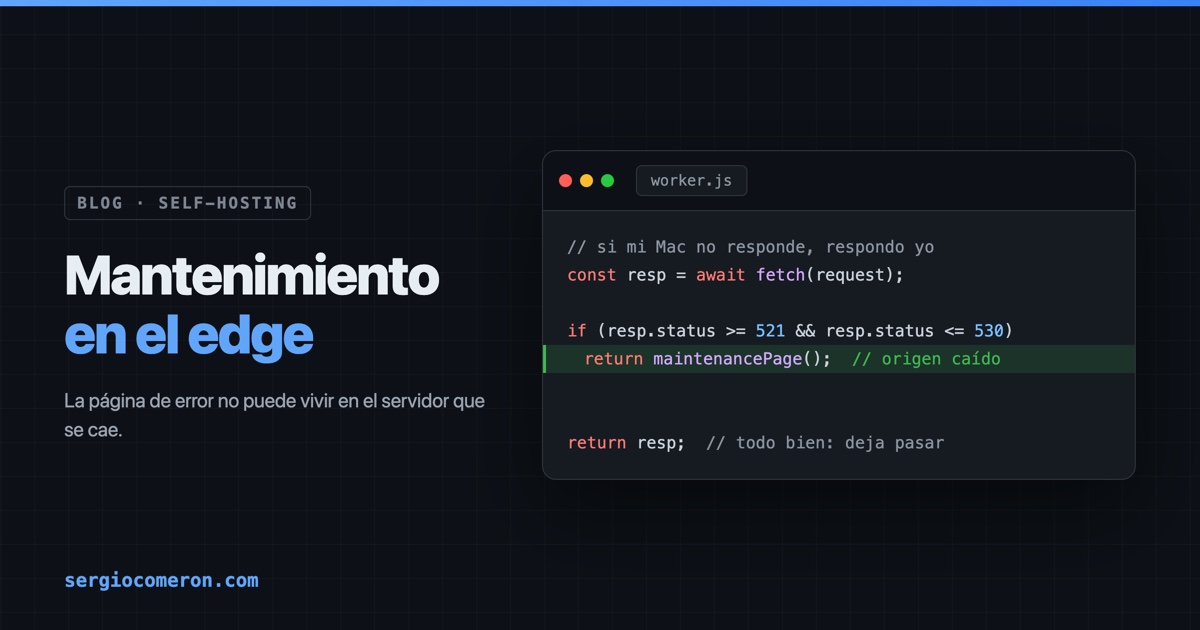
The Worker sits in front of the traffic with minimal logic:
 1export default {
 2  async fetch(request, env) {
 3    // 1) Manual switch
 4    if ((env.MAINTENANCE || '').toLowerCase() === 'on') {
 5      return maintenancePage();
 6    }
 7    // 2) Automatic detection
 8    try {
 9      const resp = await fetch(request);          // try my Mac
10      if (resp.status >= 521 && resp.status <= 530) // Cloudflare: origin down
11        return maintenancePage();
12      return resp;                                 // all good: let it through
13    } catch (e) {
14      return maintenancePage();
15    }
16  },
17};
Two independent triggers:
- Automatic: on every visit, the Worker tries to talk to my Mac. If it’s off, the tunnel falls and Cloudflare returns a 52x-family error. The Worker detects it and serves the maintenance page without me touching anything. This covers the important case: a reboot, or even an unexpected crash at three in the morning.
- Manual: a
MAINTENANCEvariable. If I set it toon, it shows the page even with the Mac alive. That’s for planned maintenance: I turn it on before starting, keep working against the server overlocalhost(which doesn’t go through Cloudflare) and turn it off when done.
The page responds with an HTTP 503 and a Retry-After header. That’s the correct code: search engines understand it’s temporary, retry, and don’t penalize you. And it carries Cache-Control: no-store, so the moment I disable maintenance it disappears instantly.
Two details that tripped me up
Route, not domain. When you attach the Worker, Cloudflare offers “custom domain” or “route pattern”. If you pick custom domain, the Worker replaces your site forever and the “try the origin first” trick breaks. What you want is a route pattern (yourdomain.com/*): the Worker interposes, but the domain still resolves to your server, so it can try it and only act if it doesn’t answer.
Where NOT to put it. The Worker sits in front of all the traffic on the routes you assign it. I put it on the site and on my other one, but I deliberately left it off the Moodle. Interposing an extra layer on a service with sessions, file uploads and real-time connections means adding a point of failure where it hurts most. For the critical stuff, the less in the middle, the better.
The neat part
The maintenance page is fully self-contained: all the HTML and CSS are embedded in the Worker, without loading a single external font or image. It has to be that way, because anything it tried to request from my server… wouldn’t be there, which is the very reason it’s being shown.
And that’s the takeaway. In a home setup, assuming your server will be there to apologize for not being there is a logic error. The apology has to be kept outside, with someone who’s still awake when you turn off the lights.