Self-hosting without fear: how Cloudflare keeps my home Mac mini online
ContenidoContents
This website doesn’t live on any hosting provider. It lives on a Mac mini sitting at home, under my desk, serving with Apache not just sergiocomeron.com, but also the Moodle site, Jitsi, and a couple of other projects.
Self-hosting has something addictive about it: total control, no monthly hosting bills, and the joy of tinkering with your own infrastructure. But it has an Achilles’ heel that traditional hosting doesn’t: if the power goes out at home, or the internet drops, the website goes down with me. When I compared it to another site I had on a hosting service, that was where I was losing.
So instead of giving up, I started solving the problems of home self-hosting one by one. And it turns out that almost all of them are solved by the same piece: Cloudflare. Here’s what I actually use.
The underlying problem: a house is not a datacenter
Serving from home has three serious drawbacks:
- Dynamic IP: my ISP changes my public IP every so often. If DNS points to an IP that’s no longer mine, the site vanishes.
- Opening ports: for the internet to reach my Apache, in theory I’d have to open ports on the router and expose my home network to the world. Not appealing.
- Outages: power cuts, reboots, the router freezing up. At home, it happens.
Let’s see how each one falls.
DNS + proxy: the orange cloud
The first step is putting the domain on Cloudflare and enabling the proxy (the famous orange cloud icon). With that, when someone visits sergiocomeron.com they don’t talk to my house directly: they talk to Cloudflare, and Cloudflare talks to me.
Immediate, free benefits:
- SSL/HTTPS without renewing certificates by hand.
- My home IP stays hidden: nobody sees my router’s real IP.
- Attack mitigation and a global CDN that caches static content close to the visitor.
The “before” of my setup lived here: I had a small script (cloudflare-ddns.sh) that every five minutes checked my public IP and, if it had changed, updated the A record on Cloudflare via API. A homemade DDNS. It worked, but it still depended on opening ports. The next step made it unnecessary.
Cloudflare Tunnel: zero open ports
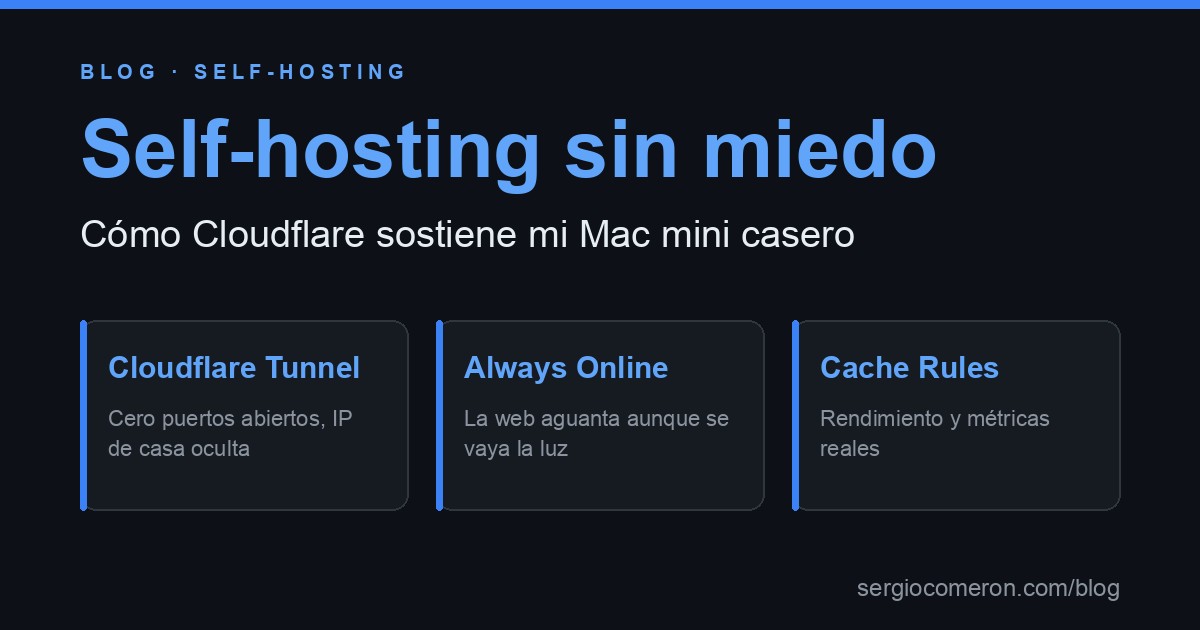
This is the change that put my mind most at ease. Cloudflare Tunnel flips the model: instead of opening ports for the internet to come into my house, I install a small daemon (cloudflared) that opens an outbound connection to Cloudflare and keeps it alive. All traffic comes in through that tunnel.
Consequences:
- I don’t open a single port on the router. My home network stops being exposed.
- My home IP no longer even appears in DNS: the records are
CNAMEs to the tunnel, not anArecord to my IP. The DDNS becomes redundant. - I configure it in a
config.ymldeclaring which subdomain goes to which local service:
1ingress:
2  - hostname: sergiocomeron.com
3    service: http://localhost:80
4  - hostname: meet.sergiocomeron.com
5    service: http://localhost:80
6  - hostname: aula.sergiocomeron.com
7    service: http://localhost:80
8  - service: http_status:404
Each hostname points to my Apache at localhost:80. Cloudflare handles the rest. Going from “DDNS + open ports” to “one outbound tunnel and nothing exposed” is, by far, the best thing I’ve done to this setup.
Always Online: the safety net
That leaves the Achilles’ heel: what if the power goes out? The Mac mini shuts down, the tunnel drops, and my origin stops responding. On a hosting provider this doesn’t happen; in my living room, it does.
That’s what Always Online is for. Cloudflare keeps a cached copy of your site’s pages and, if your origin doesn’t respond, it serves that copy instead of showing an error. The visitor sees the website (a static version, granted) even if my Mac mini is off.
And here I’m in luck: this site is almost entirely static content. The homepage, the blog and most of my tools run directly in the browser, with no server. The only truly dynamic bits are occasional things like the contact form. So that static copy is, in practice, almost the entire site: what I lose while the origin is down is minimal. For a site like this, Always Online isn’t a band-aid, it’s a real solution.
I’ll be honest: I haven’t had to put it to the test in a real outage —and I hope it stays that way—. But it’s exactly the piece that home self-hosting was missing so that a power cut doesn’t mean “site down”. I turned it on the day I realized that was my biggest weak point compared to hosting. It’s my insurance, and it’s free.
Cache Rules: performance (and a recent lesson)
Cloudflare caches content by default, which is great for images, CSS and JS. But the cache isn’t always your friend, and I learned that just recently.
I set up analytics to know how many times my podcast episodes get downloaded, counting the requests to the .mp3 files in the Apache logs. The numbers came out really low. The reason? Cloudflare was caching the audio and serving it from its edge, so most downloads never reached my server… or my logs.
The fix was Cache Rules: a rule that tells Cloudflare “for the podcast audio paths, don’t cache, always go to the origin” (bypass). Since then every download hits Apache and the counter is real. The lesson: caching is incredibly powerful, but you have to know where you don’t want it.
The real IP of your visitors
Putting Cloudflare in front has a side effect that’s confusing at first: your logs fill up with Cloudflare IPs, not your visitors’. It makes sense, because whoever talks to my Apache is Cloudflare, not the user’s browser.
The solution is Apache’s mod_remoteip module plus a header Cloudflare adds to every request, CF-Connecting-IP, carrying the original IP. With this, Apache “recovers” the visitor’s real IP and writes it to the logs:
1RemoteIPHeader CF-Connecting-IP
2RemoteIPTrustedProxy 127.0.0.1 ::1
Without this, any analytics you pull from the logs —visits, countries, the podcast downloads from earlier— would be measuring Cloudflare instead of people. A small detail with a huge impact on the data.
Knowing when something breaks
Cloudflare keeps the site up and Always Online covers outages, but real “without fear” means finding out before anyone else that something’s wrong. For that I have a handful of scripts running on cron that watch different things: that the site responds, Cloudflare’s status, the Mac mini’s load, suspicious access attempts, disk space…
If something goes off the rails, I get an instant alert on Telegram. And to review the history I built a little dashboard of my own where I see visits, events and alerts at a glance. It’s not Cloudflare —it’s homemade— but it’s the other half of the peace of mind: the day something fails, I find out first, not my visitors.
And if everything fails: backups
The last safety net. Every morning, a script copies what matters —the databases, the Apache config, the website files— and uploads it to cloud storage (a bucket in another region), plus keeping a recent local copy. All compressed and with automatic rotation.
Self-hosting at home isn’t at odds with being responsible: if the Mac mini died completely, bringing it all back up is a matter of restoring a few .tar.gz files. That’s what truly takes the fear away.
The domain and email: the only thing I pay for
Here I have to be honest about the “free” part. Everything above —proxy, Tunnel, Always Online, Cache Rules, DNS— is on Cloudflare’s Free plan. I don’t pay a cent for it.
The only thing I pay for is the domain itself. And I registered it precisely with Cloudflare Registrar, which sells it at cost (without the markup of other registrars). But I didn’t do it for the website: I got it because I wanted custom email with iCloud+ (Apple’s Custom Email Domain feature), and for that you need your own domain. By configuring iCloud’s MX records in Cloudflare’s DNS, I have @sergiocomeron.com email managed by Apple. The domain serves both purposes.
What I don’t use (yet)
Cloudflare is far more than a CDN, but almost its entire catalog is designed to build your application on top of their infrastructure —the exact opposite of what I do (running my own server). Just to give you an idea of what’s out there:
- Workers: run your code spread across Cloudflare’s edge worldwide, with no server of your own. A kind of “serverless” glued to the network.
- R2: object storage à la Amazon S3 (images, videos, large files), with the bonus that it doesn’t charge for data egress.
- D1: a SQL database (SQLite) living at the edge, designed to be used from Workers.
- Pages: static site hosting with automatic deploys from Git. In fact this blog lived there for a while, before I brought it home to the Mac mini.
- Zero Trust / Access: putting identity and login in front of internal services, to expose them only to whoever you decide and without setting up a VPN.
I need none of this when I have a server at home where I run whatever I want. And part of doing this well is not adding pieces that don’t solve a problem you actually have.
In short
Home self-hosting seemed doomed to be fragile, and it turns out that with a free layer on top it stops being so:
- Tunnel → zero open ports, home IP invisible.
- Always Online → the site survives even if the power goes out.
- Cache Rules → performance where you want it, real data where you need it.
- DNS + proxy + SSL → all solved, and free.
- I only pay for the domain, which also gives me email.
If you’ve got an old computer gathering dust, today it’s perfectly viable to turn it into your server without exposing your home or fearing the first blackout. I’ve been running like this for a while now, and I’m not going back.